

Create a cross-section
Products > PC- Convey > Guided Tour
The Input Screen is shown below. You enter the Chainage and Reduced Level (elevation) of the Points of your cross-section, and by clicking the right-hand mouse button you can access a table of Manning's n (roughness) values which, when selected, will be placed in the Manning's n input box (see right-hand side of screen shot below).
The cross-section is drawn on-screen as you enter the data.
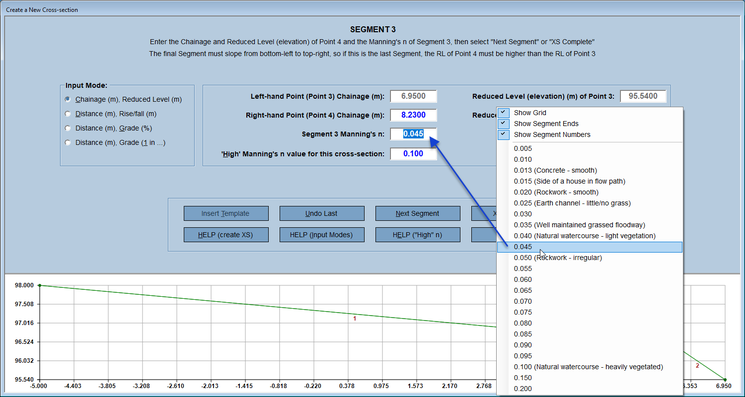
There are four Input Modes for entering the data via the Input Screen. More information on the four input modes is available in HELP within PC-Convey, which can also be download here. Which Input Mode you use will depend on the type of cross-section you are entering, and you can switch between methods while creating a single cross-section.
The most commonly used method is to enter the data from a list of Chainage and Reduced Level (Elevation) pairs. Alternatively, if you have a cross-section that you use regularly (e.g. a road) you can input that part of the cross-section by using a template (see next page). You can also import data from the clipboard or a .csv. ,txt or tab-delimited file (see later in the Guided Tour).
The example here shows the Chainage, Reduced Level method. The first Segment slopes from (5.0, 104.0) to (38.0, 103.0) and has a Manning's n value of 0.035:
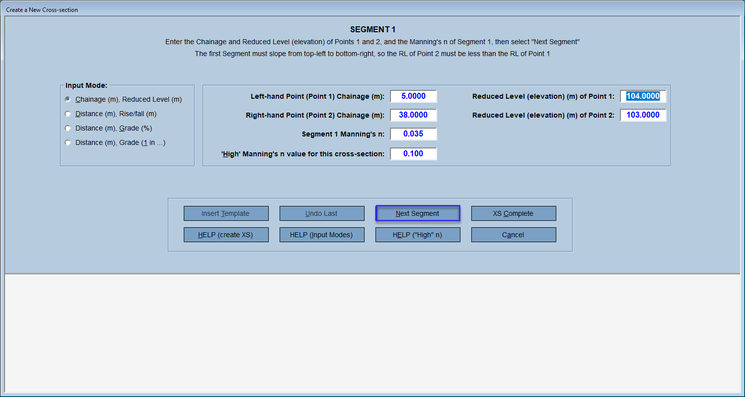
On selecting Next Segment the cross-section looks like this:
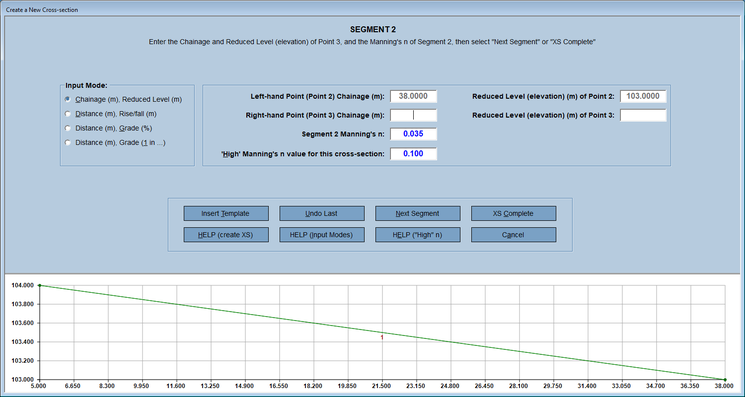
The right-hand end of Segment 2 is at (49.0, 99.4):
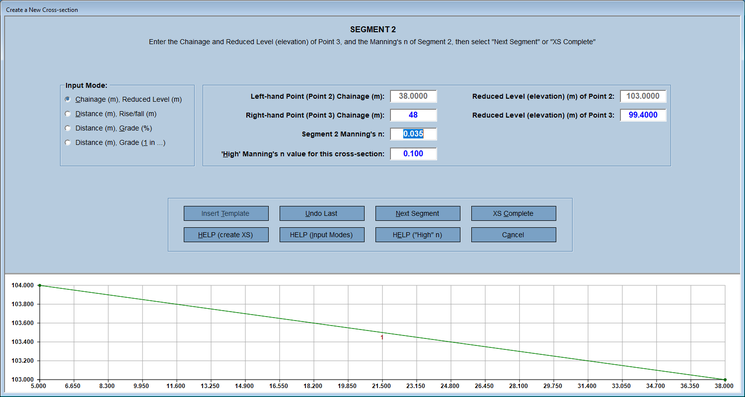
After entering the data above and selecting Next Segment, the cross-section looks like this:
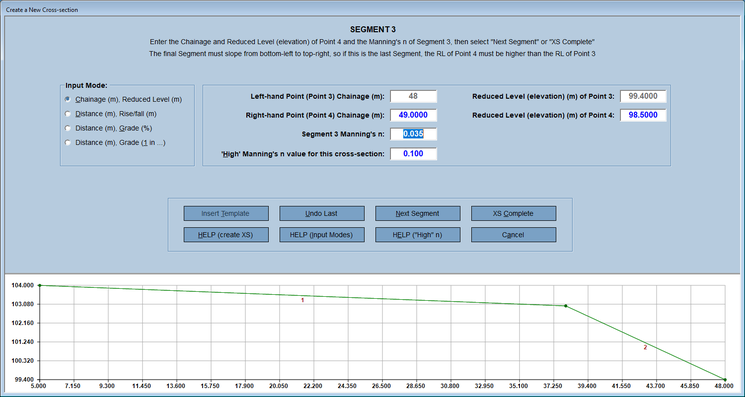
The right-hand end of the next Segment is at (49.0, 98.5) as shown above. After selecting Next Segment the cross-section looks like this:
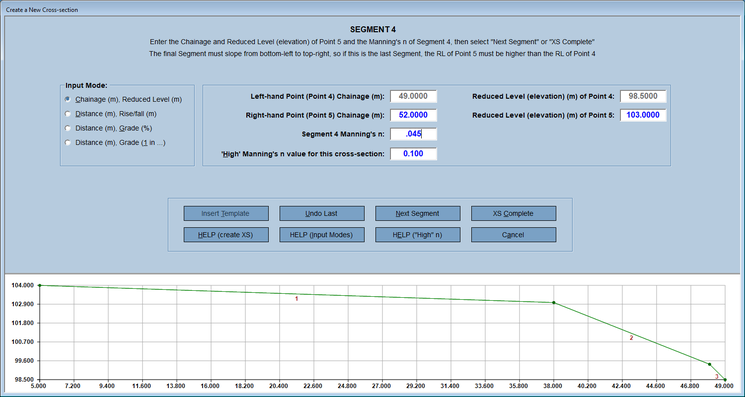
The right-hand end of Segment 4 is at (52.0, 103.0) as shown above. On selecting "Next Segment" the cross-section looks like this:
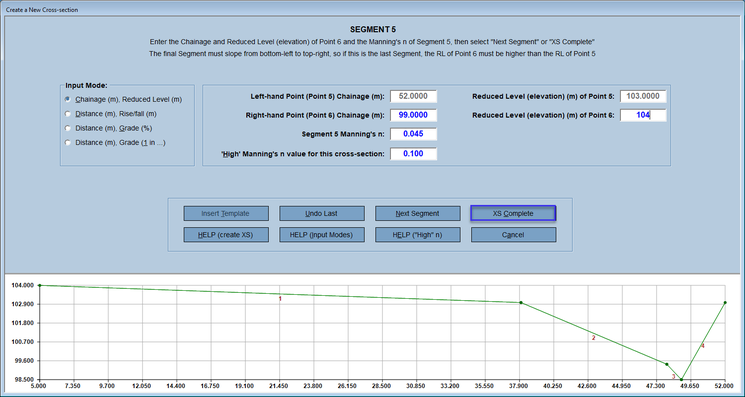
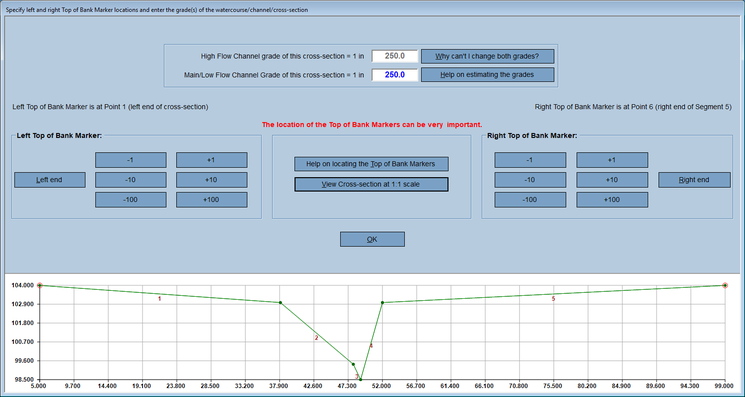
The right-hand end of the final Segment is at (99.0, 104.0). As this is the final Segment, XS Complete is selected. The final cross-section is drawn and you move on to specifying the locations of the Top of Bank Markers, which can be very important:
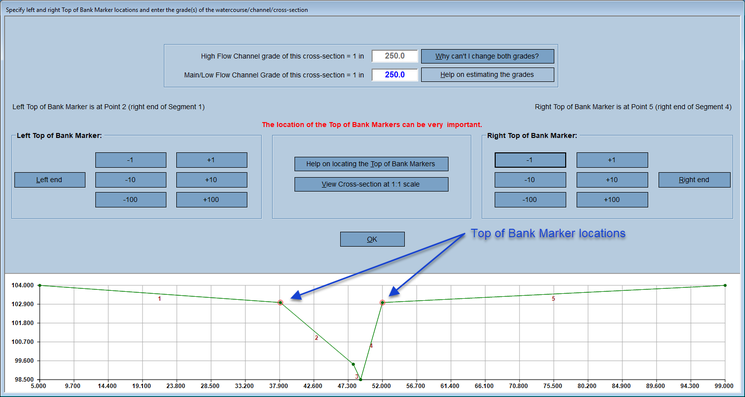
For this example the Top of Bank Markers need to be placed as shown here:
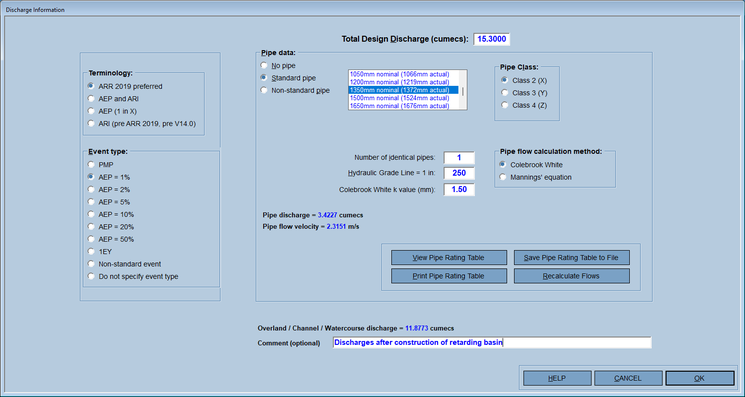
On selecting OK you enter the discharge information. This waterway has a 1350 mm diameter pipe below it and so 3.4 cumecs of the total discharge of 15.30 cumecs is carried by the pipe, leaving 11.9 cumecs to be carried by the waterway:
Selecting OK takes you to the screen where you save enter the Project name and an optional comment:
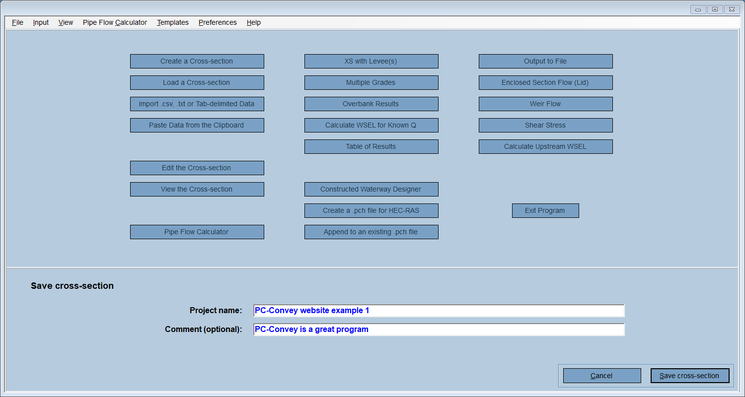
Selecting Save cross-section enables you to provide a file name for saving the file, which can be the same as or different to the Project name: